【背景】
尝试用easyUI:
中的:
Panel
http://www.jeasyui.com/demo-mobile/main/index.php?plugin=Panel&theme=metro-gray&dir=ltr&pitem=
去实现编辑的html内容,在手机上预览显示。
【折腾过程】
1.先去拿到背景图片:
http://www.jeasyui.com/demo-mobile/images/phone.png
再去找个单独的html去测试。
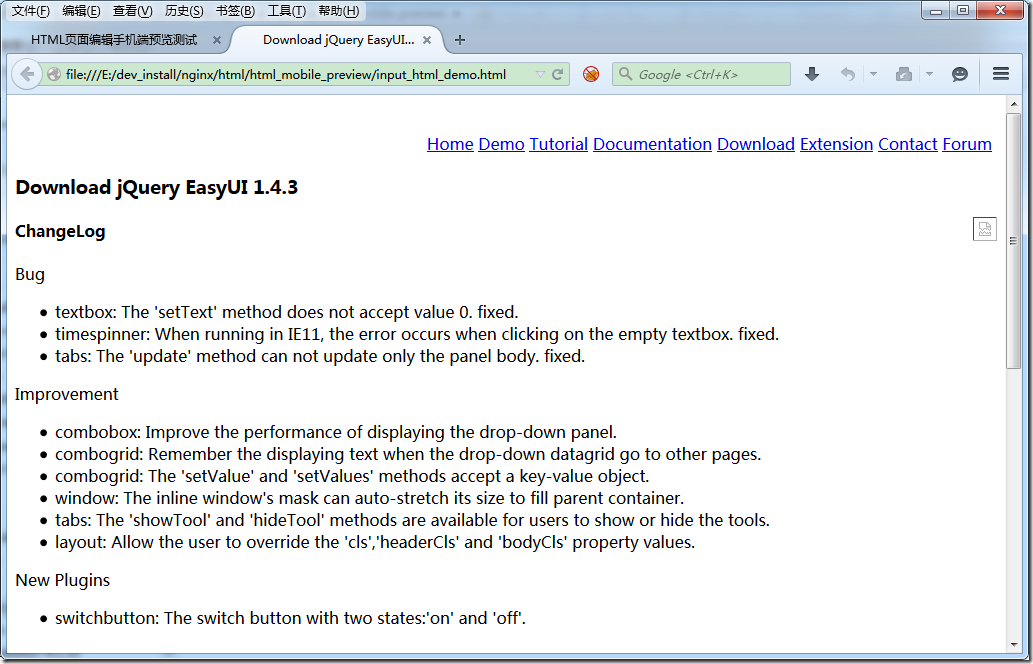
2.网上随便下载了个页面
单独打开效果是:
然后用如下代码:
    <!doctype html>
    <html>
    <head>
        <meta charset="UTF-8">
        <meta name="viewport" content="initial-scale=1.0, maximum-scale=1.0, user-scalable=no">
        <title>HTML页面编辑手机端预览测试</title>
        <link rel="stylesheet" type="text/css" href="lib/easyui/themes/metro/easyui.css">
        <link rel="stylesheet" type="text/css" href="lib/easyui/themes/mobile.css">
        <link rel="stylesheet" type="text/css" href="lib/easyui/themes/icon.css">
        <script type="text/javascript" src="lib/easyui/jquery.min.js"></script>
        <script type="text/javascript" src="lib/easyui/jquery.easyui.min.js"></script>
        <script type="text/javascript" src="lib/easyui/jquery.easyui.mobile.js"></script>
    </head>
    <body>
        <div class="easyui-navpanel" data-options="href:'input_html_demo.html'" style="padding:10px">
            <header>
                <div class="m-toolbar">
                    <div class="m-title">Ajax Panel</div>
                </div>
            </header>
            <footer>
                <div class="m-toolbar">
                    <div class="m-title">Panel Footer</div>
                </div>
            </footer>
        </div>
    </body>
    </html>
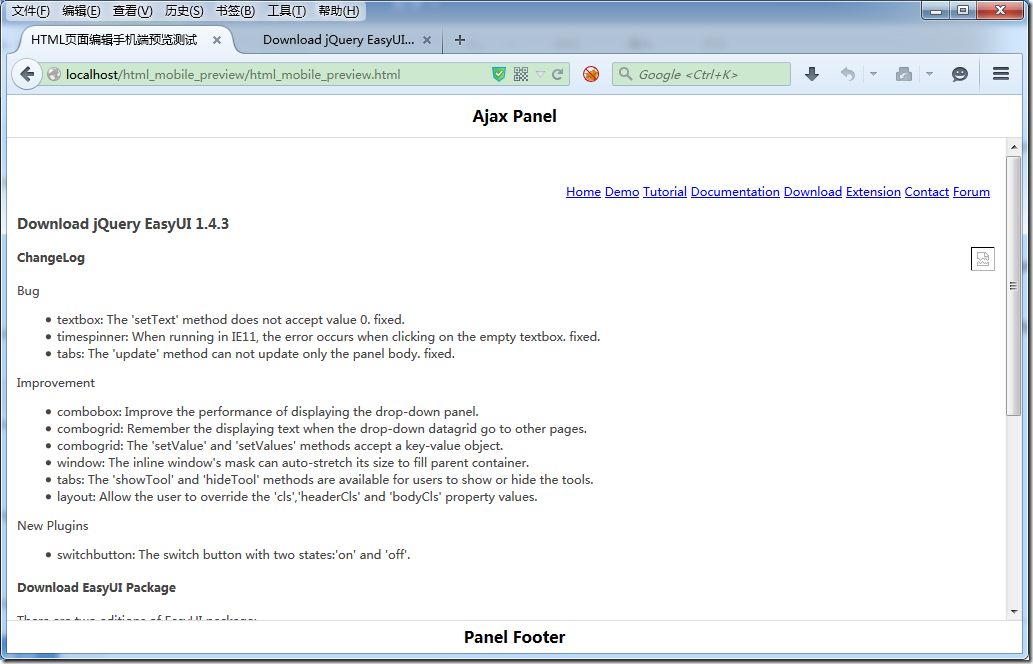
放在里面效果是:
3.尝试去加上对应的背景图片:
把:
Ajax Panel – Live Demo – jQuery EasyUI
中的源码:
<styletype="text/css">
	.device{
		width: 400px;
		height: 760px;
		margin:10px 0 0 170px;
		background:url('../images/phone.png') no-repeat;
		position:relative;
	}
	.demo-wrap{
		position:absolute;
		width:322px;
		height:482px;
		background: #ccc;
		top:117px;
		left:23px;
	}
</style>
拷贝过来:
再去试试:
    <!doctype html>
    <html>
    <head>
        <meta charset="UTF-8">
        <meta name="viewport" content="initial-scale=1.0, maximum-scale=1.0, user-scalable=no">
        <title>HTML页面编辑手机端预览测试</title>
        <link rel="stylesheet" type="text/css" href="lib/easyui/themes/metro/easyui.css">
        <link rel="stylesheet" type="text/css" href="lib/easyui/themes/mobile.css">
        <link rel="stylesheet" type="text/css" href="lib/easyui/themes/icon.css">
        <script type="text/javascript" src="lib/easyui/jquery.min.js"></script>
        <script type="text/javascript" src="lib/easyui/jquery.easyui.min.js"></script>
        <script type="text/javascript" src="lib/easyui/jquery.easyui.mobile.js"></script>

        <style type="text/css">
            .device{
                width: 400px;
                height: 760px;
                margin:10px 0 0 170px;
                background:url('images/phone.png') no-repeat;
                position:relative;
            }
            .demo-wrap{
                position:absolute;
                width:322px;
                height:482px;
                background: #ccc;
                top:117px;
                left:23px;
            }
        </style>
    </head>
    <body>
        <div class="easyui-navpanel" data-options="href:'input_html_demo.html'" style="padding:10px">
            <header>
                <div class="m-toolbar">
                    <div class="m-title">Ajax Panel</div>
                </div>
            </header>
            <footer>
                <div class="m-toolbar">
                    <div class="m-title">Panel Footer</div>
                </div>
            </footer>
        </div>
    </body>
    </html>
结果显示效果没变化。
4.把路径都改为上一级的目录:
        <link rel="stylesheet" type="text/css" href="../lib/easyui/themes/metro/easyui.css">
        <link rel="stylesheet" type="text/css" href="../lib/easyui/themes/mobile.css">
        <link rel="stylesheet" type="text/css" href="../lib/easyui/themes/icon.css">
        <script type="text/javascript" src="../lib/easyui/jquery.min.js"></script>
        <script type="text/javascript" src="../lib/easyui/jquery.easyui.min.js"></script>
        <script type="text/javascript" src="../lib/easyui/jquery.easyui.mobile.js"></s
结果是:
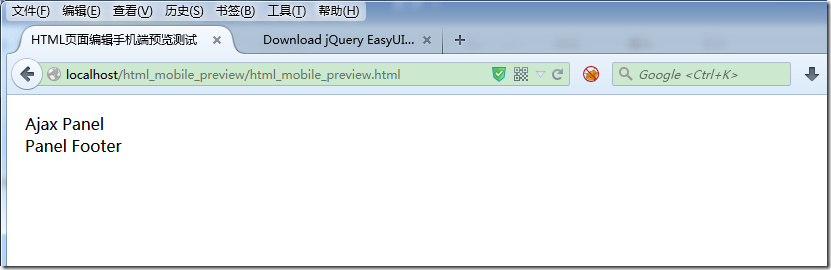
只显示文字了,其他内容都不显示了。。。
5.后来又经过N多次的折腾,结果都还是显示乱码,或者异常。
6.最后的最后,终于用如下代码:
<!doctype html>
<html>
<head>
    <meta charset="UTF-8">
    <meta name="viewport" content="initial-scale=1.0, maximum-scale=1.0, user-scalable=no">
    <title>HTML页面编辑手机端预览测试</title>
    <link rel="stylesheet" type="text/css" href="lib/easyui/themes/metro/easyui.css">
    <link rel="stylesheet" type="text/css" href="lib/easyui/themes/mobile.css">
    <link rel="stylesheet" type="text/css" href="lib/easyui/themes/icon.css">
    <script type="text/javascript" src="lib/easyui/jquery.min.js"></script>
    <script type="text/javascript" src="lib/easyui/jquery.easyui.min.js"></script>
    <script type="text/javascript" src="lib/easyui/jquery.easyui.mobile.js"></script>

    <style type="text/css">
        .device{
            width: 400px;
            height: 760px;
            margin:10px 0 0 170px;
            background:url('images/phone.png') no-repeat;
            position:relative;
        }
        .demo-wrap{
            position:absolute;
            width:322px;
            height:482px;
            background: #ccc;
            top:117px;
            left:23px;
        }
    </style>

</head>
<body>

    <div class="device">
        <div class="demo-wrap">
            <div class="easyui-navpanel" data-options="href:'input_html_demo.html'" style="padding:10px">
                <header>
                    <div class="m-toolbar">
                        <div class="m-title">页面预览效果</div>
                    </div>
                </header>
                <footer>
                    <div class="m-toolbar">
                        <div class="m-title">xxxx系统</div>
                    </div>
                </footer>
            </div>
        </div>
    </div>

</body>
</html>
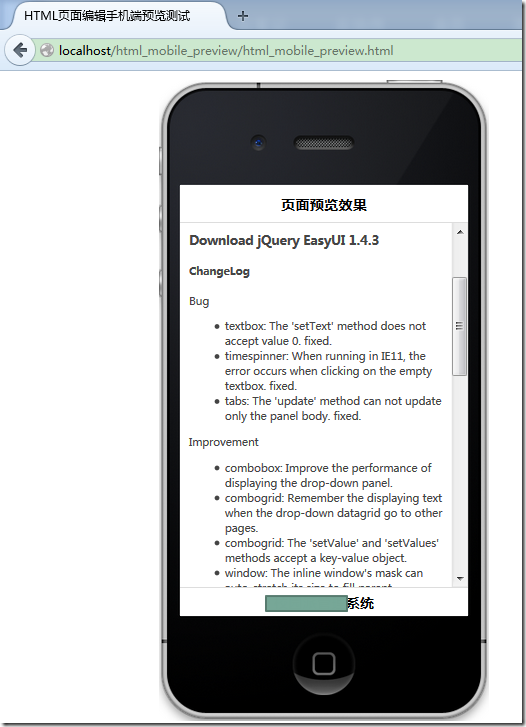
实现了预览效果:
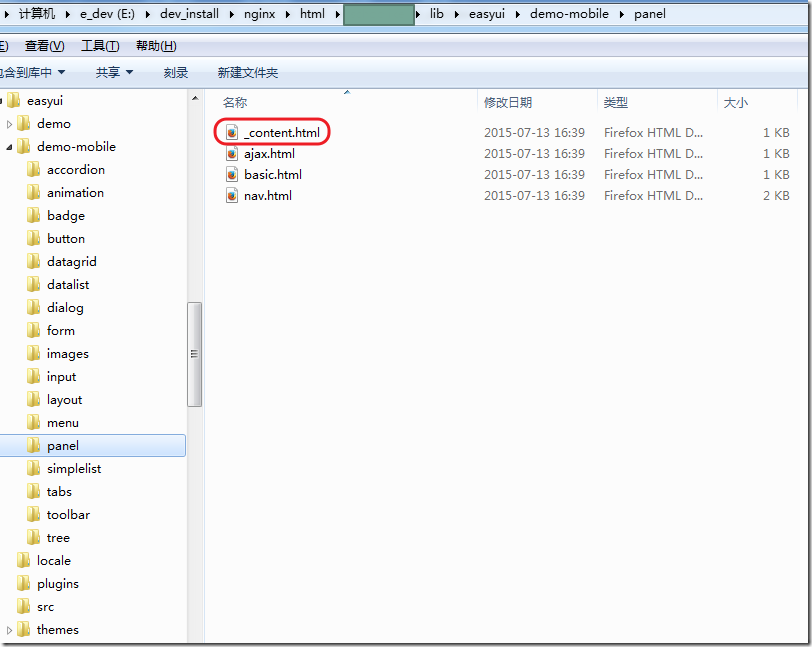
7.后来发现,对于easyUI,下载的源码包中,包含了所有的demo,包括此处这个demo。
其中就有对应的那些源码和测试文件_content.html
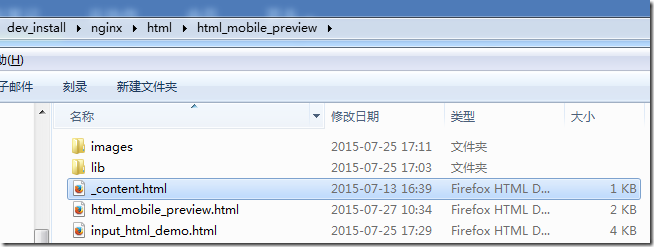
把对应的_content.html拿过来:
用代码:
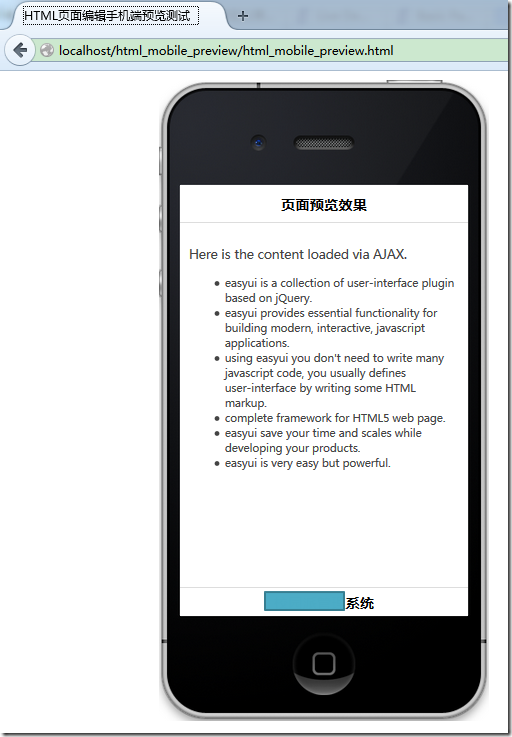
<div class="easyui-navpanel" data-options="href:'_content.html'" style="padding:10px">
就可以看到官网demo的效果了:
【总结】
其实本来这个事情很简单,只要熟悉div的class设置值,然后再用css控制这个class即可。
只不过由于之前没这么弄过,并且细节参数不会调,所以折腾了很长时间才弄好。
最终才借用官网的参数配置,尤其是各种padding,px等等,才弄出来的。